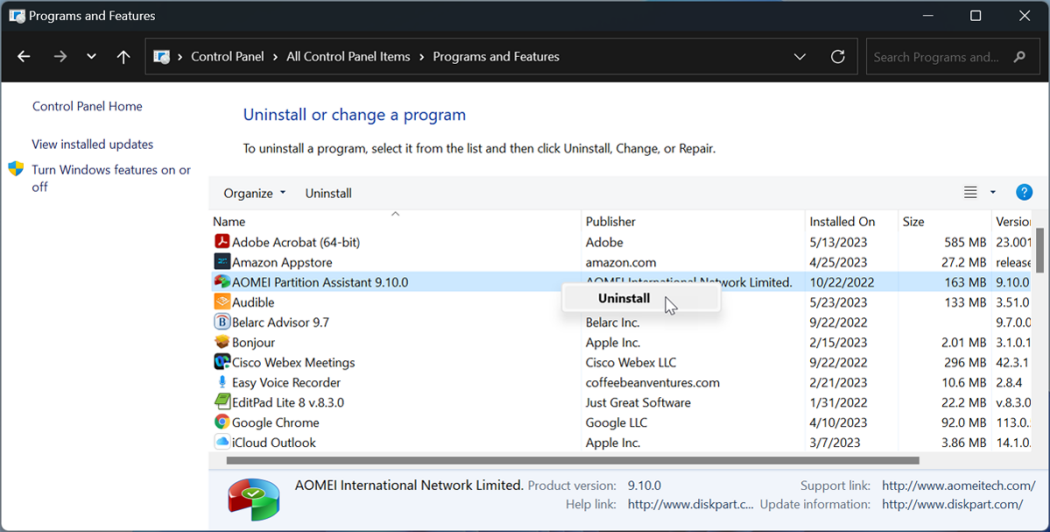
To uninstall software from computer, go to the Control Panel and click on “Programs and Features.” Find the program you want to remove, select it, and click “Uninstall.” Follow the on-screen steps to complete the process. After that, restart your computer and check for any leftover files or folders.
What Are the Different Ways to Uninstall Software from Computer?
- Control Panel – Uninstall software from Programs and Features.
- Settings (Windows 10/11) – Go to Apps > Installed apps, then uninstall.
- Software’s Own Uninstaller – Found in the program’s folder.
- Third-Party Tools – Use tools like Revo or CCleaner for complete removal.
- Command Prompt/PowerShell – For advanced users using commands.
- Mac – Drag app to Trash from Applications.
- Mac Terminal – Use commands or Homebrew to uninstall.
What Should You Do If Uninstall Software Doesn’t Work Normally?
- Restart Your Computer – Try uninstalling again after a reboot.
- Use Safe Mode – Boot into Safe Mode and attempt the uninstall.
- Use the Program’s Uninstaller – Look in the program folder for an uninstall file.
- Try a Third-Party Uninstaller – Tools like Revo or IObit can force uninstall.
- Use Command Prompt/PowerShell – Use admin commands to remove stubborn software.
- Delete Leftover Files Manually – Remove leftover folders from Program Files and AppData.
- Check for Malware – If it resists uninstall, scan for malware using antivirus software.
How Can You Check If a Program Was Fully Removed After You Uninstall Software?
- Check Apps List – Look in Control Panel or Settings.
- Inspect Installation Folders – Check C:\Program Files for leftovers.
- Search AppData – Look in hidden folders for remaining files.
- Start Menu – See if shortcuts still exist.
- Registry Check – Use regedit to find leftover entries.
- Use Uninstaller Tools – Tools like Revo can detect and remove leftovers.