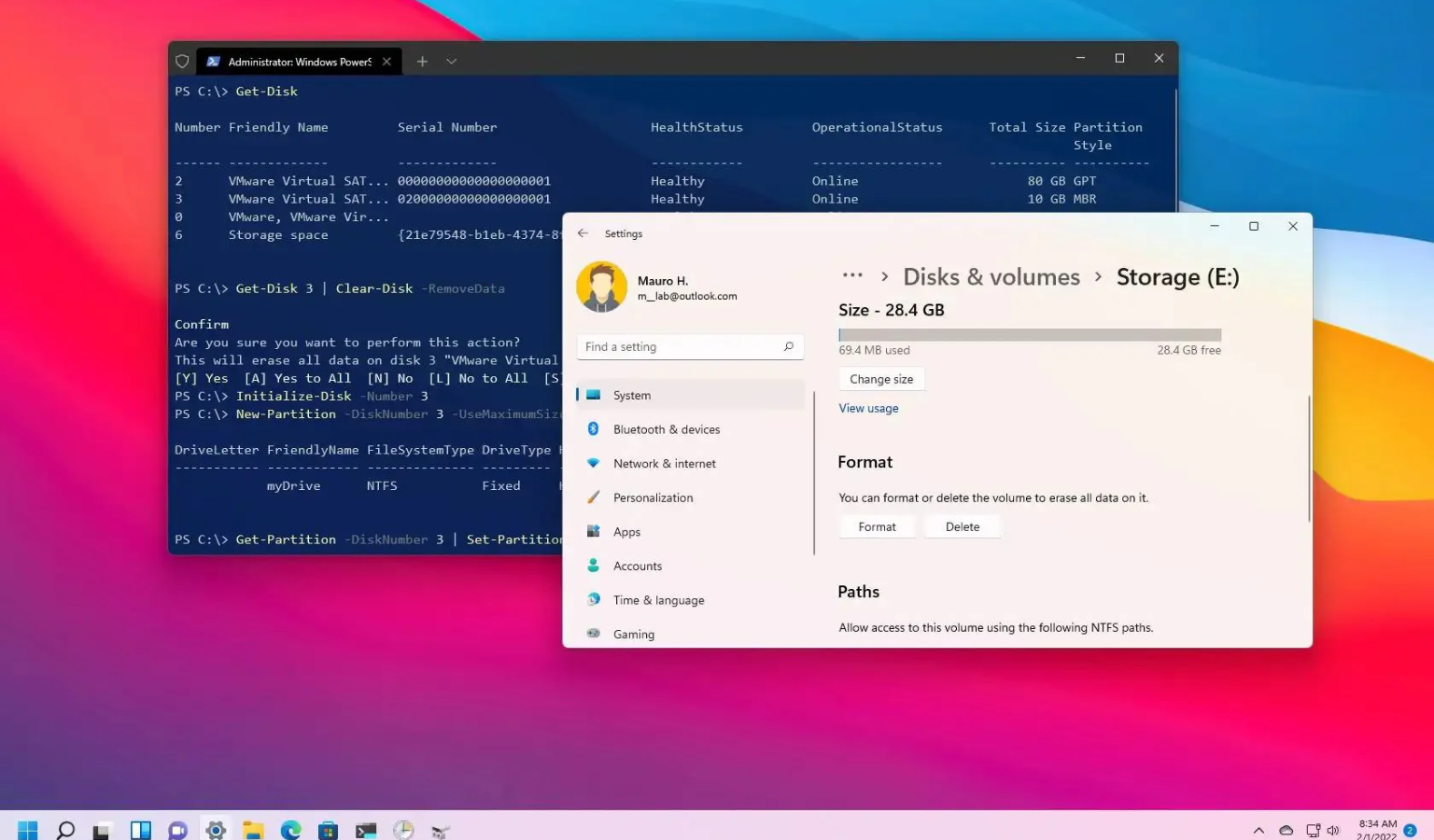
To format a hard drive in Windows, first open File Explorer, then right-click on the drive you want to format and select “Format…” from the menu. In the format window, choose the file system , assign a volume label if desired, and select either a quick format or full format. A quick format is faster but doesn’t scan the drive for bad sectors, while a full format takes longer but is more thorough. Once you’ve selected your preferences, click “Start” to begin the process. Make sure to back up any important data first, as formatting will erase everything on the drive.
To format a hard drive in Windows, use Disk Management or File Explorer. For steps, visit Microsoft’s official site: https://support.microsoft.com.
Why You Might Need to Format a Hard Drive ?
- To Install a New Operating System
- To Remove Viruses or Malware
- To Change File System Type
- To Fix Disk Errors-
- To Reuse or Repurpose the Drive
- To Improve Performance
- When Setting Up a New Drive
What to Do After Formatting a Hard Drive in Windows
- Check Drive Recognition – Ensure Windows detects the newly formatted drive in File Explorer or Disk Management.
- Assign a Drive Letter – If not already assigned, add a drive letter using Disk Management.
- Update Drivers – Install or update storage and chipset drivers if needed.
- Install Essential Software – Reinstall antivirus, productivity tools, and other must-have applications.
- Restore Data – Recover files from backup (if any) to the formatted drive.
- Enable File History or Backup – Set up Windows Backup or File History for future data protection.
- Run Disk Check – Use chkdsk to ensure the drive has no bad sectors.
- Adjust Power Settings – Prevent drive sleep if it’s used frequently (especially external drives).
- Create Partitions (Optional) – Use Disk Management to divide the drive into multiple partitions.
- Check Antivirus & Security Settings – Ensure your drive is included in security scans.
Steps to Format a Hard Drive in Windows
- Open File Explorer – Press Windows + E.
- Right-click the Drive – Choose the hard drive you want to format.
- Select “Format” – From the context menu.
- Choose File System – Usually NTFS or exFAT.
- Name the Drive – Enter a volume label (optional).
- Check Quick Format – Recommended for faster formatting.
- Click “Start” – Confirm when prompted to begin formatting.
- Wait for Completion – A message will appear once it’s done.
Common Errors During Formatting and How to Fix Them
- “Windows Cannot Format the Drive”– Fix: Ensure the drive isn’t in use; close all programs or restart the PC.
- “Drive is Write-Protected”– Fix: Remove write protection via Registry Editor or Diskpart.
- “Format Did Not Complete Successfully”– Fix: Run CHKDSK to check for errors or try Disk Management.
- Drive Not Showing Up– Fix: Assign a drive letter in Disk Management.
- “Access Denied” Error– Fix: Run the format as an administrator.
- Unable to Format Large Drives to FAT32– Fix: Use exFAT or third-party tools for FAT32 formatting.
- Bad Sectors Detected– Fix: Use CHKDSK /r or consider replacing the drive.
How to Recover Data After Accidental Format
- Stop Using the Drive Immediately– Prevent overwriting the lost data.
- Use Data Recovery Software– Try tools like Recuva, EaseUS, or Disk Drill.
- Scan the Formatted Drive– Let the software perform a deep scan.
- Preview Recoverable Files– Check file types and names before recovery.
- Select and Recover Files– Save them to a different drive or partition.
- Seek Professional Help (if needed)– For critical data, consult a data recovery service.
Formatting a New vs. Used Hard Drive in Windows
New Hard Drive
- Initialize in Disk Management
- Create a New Volume
- Select file system
Used Hard Drive
- Backup Important Data
- Open File Explorer or Disk Management
- Quick or Full Format
- Check for Errors
How to change hard drive from mbr to gpt?
- Open Command Prompt as administrator.
- Type diskpart and press Enter.
- Type list disk to see all drives.
- Type select disk X (replace X with your disk number).
- Type clean (this will erase all data).
- Type convert gpt and press Enter.