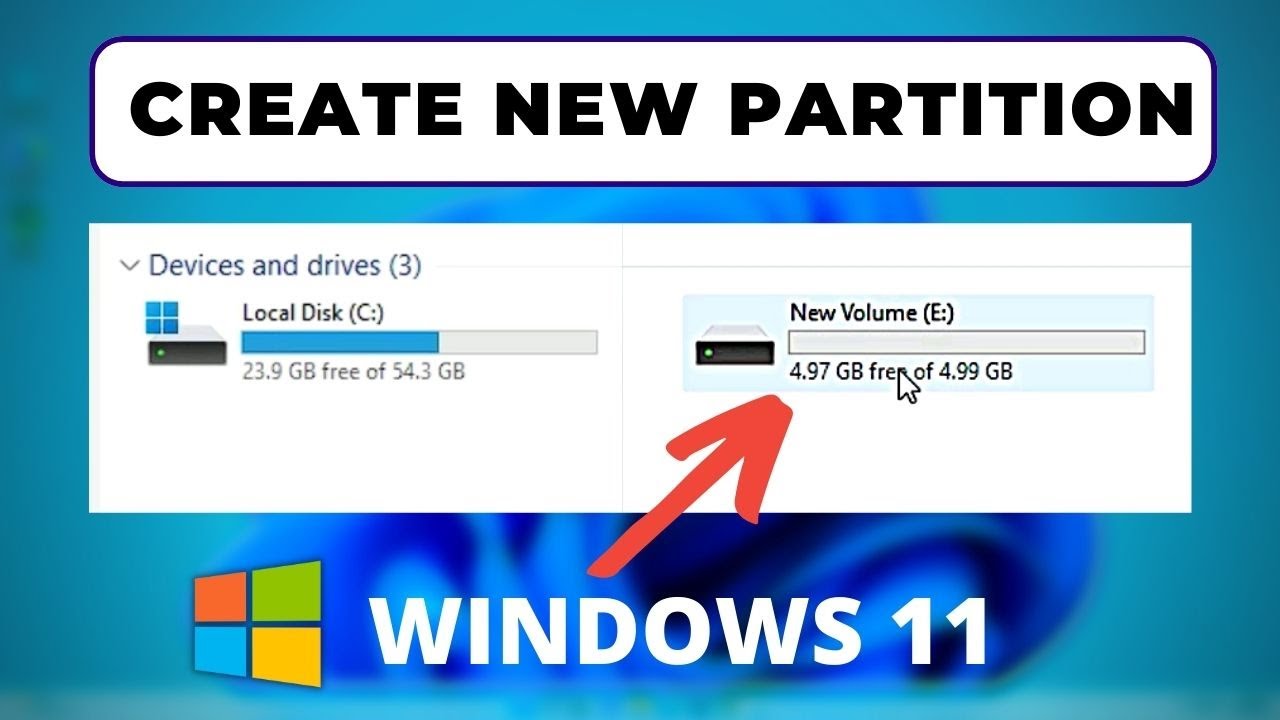
Disk partitioning is the process of dividing a physical hard drive into multiple logical drives. It can help improve data organization, enhance performance, and allow for multiple OS installations. Windows 11 includes built-in tools that make partitioning easier for users. Follow this guide to learn how to partition your disk safely and effectively.
Steps to Partition a Disk in Windows 11
1. Open Disk Management
To begin, you’ll need to access the Disk Management tool:
- Right-click the Start button.
- Select Disk Management from the context menu.
- This will open the disk configuration window.
2. Choose the Disk to Partition
Find the drive you want to partition. Make sure it has unallocated space or enough free space to shrink.
3. Shrink an Existing Volume
- Right-click the volume you want to shrink (e.g., C: drive).
- Select Shrink Volume.
- Enter the amount of space you want to shrink in MB. Then click Shrink.
This will create unallocated space on the disk.
4. Create a New Partition
- Right-click the unallocated space.
- Select New Simple Volume.
- Follow the wizard:
- Specify the volume size.
- Assign a drive letter.
- Format the partition (use NTFS and default settings).
- Click Finish to complete the process.
What Are the Common Issues During Disk Partition?
While disk partitioning is generally safe, users may encounter some common problems:
1. Not Enough Space to Shrink
Windows may not allow partition shrinking if system files are stored at the end of the volume. Running a disk defragmenter or using third-party tools may help.
2. Existing Partitions Using MBR
Older disks using MBR partition style are limited to four primary partitions. Consider converting to GPT if needed, especially for drives larger than 2TB.
3. Access Denied or Permissions Errors
You must have administrative privileges to partition a disk. Always run Disk Management as an administrator.
Errors You May Encounter
1. “There is not enough space available on the disk(s)”
This can occur if the unallocated space is not contiguous or there’s insufficient free space. Shrink volumes carefully or use third-party tools.
2. “The operation is not allowed on a disk that contains the current boot, system, pagefile, crashdump, or hibernation volume”
Some partitions like system and recovery drives cannot be resized. Avoid modifying boot volumes unless necessary.
Important Points to Consider During Disk Partition
- Backup Your Data: Always back up important files before making changes to disk partitions.
- Do Not Modify System Partitions: Be careful with partitions labeled “System Reserved” or “EFI System Partition”.
- Use GPT for Modern Systems: For UEFI-based systems, GPT is more reliable than MBR.
- Keep Some Free Space: Always leave some free space on your drives to avoid performance issues.
- Use Reliable Tools: If Windows’ built-in Disk Management doesn’t meet your needs, use respected third-party tools like MiniTool Partition Wizard or AOMEI Partition Assistant.
Conclusion
Partitioning a disk in Windows 11 is straightforward if you understand the steps and take precautions. With careful planning and awareness of possible issues, you can optimize your storage and enhance your system’s performance. Always ensure data safety by creating backups before performing any disk operations.